Wednesday, February 4, 2015

MP Update: Fix for the Windows Server OS Management Pack for SCOM

Recently the Windows Operating System Management Pack for SCOM 2012 R2 environments was pulled down due to some necessary fixes that needed to be done. The Product Group has just re-released the new MP with the following fixes:

Changes in version 6.0.7296.0

·       In 2003, 2008, 2008R2 platforms, the mount point discovery script was also discovering logical disks as mount points which appeared to many as duplicates. These mount points for logical disks were removed to prevent confusion.

·       In 2012, 2012R2 platforms, mount point discovery was causing rediscovery of logical disks and this rediscovery resulted in rules being run again. This was fixed.

·       In all platforms, duplicate performance rules were shown for mount points and logical disks. This has been fixed.

Monday, April 28, 2014

New Widgets and Dashboards available with the latest UR2 for SCOM 2012 R2

So other than some bug fixes and an update to the Unix/Linux Management Pack (http://support.microsoft.com/kb/2706783), UR2 also comes with some new widgets and dashboards. Some are updated, but for example, there is the new summary tile widget...


... and the Image Widget


For more info about all the new widgets and dashboards:: http://blogs.technet.com/b/momteam/archive/2014/04/24/new-widgets-and-dashboard.aspx 

Monday, March 17, 2014

SCU APAC 2014 - Balancing Your Datacenter Feng Shui

My session at System Center Universe Asia Pacific is done! I had a blast!

In my session, I talked about common and key scenarios of how to use System Center Orchestrator to automate popular IT processes. These are useful scenarios to build runbooks on and get started on Automation

http://www.slideshare.net/slideshow/embed_code/32399645

Monday, November 4, 2013

Free Exam Voucher for Microsoft Virtualization Specialist Certification Exam 70-409

Sign up for the Microsoft Virtual Academy course: Server Virtualization w/ Windows Server Hyper-V & System Center Jump Start here AND once you've completed it, you get a voucher code for a free exam - 70-409: Microsoft Virtualization Specialist Certification Exam

Friday, September 27, 2013

Asus UX31A: Unable to pass BIOS screen on reboot after BIOS flash upgrade

I updated the BIOS to the latest version using WinFlash utility provided by Asus on my UX31A Touch notebook. I went from BIOS v218 to v219. The WinFlash utility stated my upgrade was successful and proceeded to ask me to reboot... which I did.

After reboot, the notebook immediately went into the BIOS config screen. I immediately tried to 'Quit and Exit'... and the notebook rebooted... and it went back to the BIOS screen. I tried doing 'Save Configuration and Exit'... same thing... rebooted into BIOS screen. No matter what I did... it wont go pass the BIOS screen.

oh crap...

Played around with the BIOS settings to try and figure out what was going on... To cut the long story short, I did the following...

  • In Boot Menu --> Change FastStart to [Disable]
  • In Security Menu --> Change Secure Boot to [Disable]
  • .. then 'Save Configuration & Exit'
  • When the BIOS screen appears again, go to the Boot Menu again --> Change Launch CSM to [Enable]
After doing the above... my PC booted into Windows 8.1 fine...

PHEW!!!!.....

Monday, April 22, 2013

Speaking at TechEd North America and TechEd Europe! 2013

My session "Key Metrics and Practices for Monitoring Virtualization Platforms" is approved for both TechEd North America and TechEd Europe 2013! sweet! Time to get cracking on the presso!

If you are going to be at Tech Ed, and would like to hear something specific during this session, do drop me a note! and I will do my best to put it in. Any ideas on the session is welcomed!

See you in June!

Channel 9 Interview at MMS2013

Had an interview with Rick Claus for Channel 9 during MMS2013. Spoke about my session on Benefits and reasons to Upgrade to Active Directory 2012.

http://channel9.msdn.com/Events/MMS/2013/MMS227

MMS2013 - Benefits and Reasons to Upgrade to Active Directory 2012

MMS2013 this year was a little bit more special as it was the first time I got accepted to speak! After trying for the last 4 years...

My session was done with Adam Hall and we got pretty good comments on our session so I was happy that we managed to help some people from our content.

Here is a link to the recording of our session: http://channel9.msdn.com/Events/MMS/2013/AI-B301

Wednesday, February 20, 2013

Red Hat 5.9 includes Hyper-V drivers

Just reading around articles and noticed that Red Hat 5.9 that was launched has also been certified and includes drivers for Hyper-V platforms. This is pretty good news for customers running Red Hat as their primary distro running on Hyper-V.

http://www.redhat.com/about/news/press-archive/2013/1/red-hat-announces-general-availability-of-red-hat-enterprise-linux-5-9

Thursday, February 14, 2013

MMS 2013 Session Approved!

The Microsoft Management Summit is my annual pilgrimage where I go to hopefully learn more about System Center than the year before. I normally take the chance to catch up with good friends from all over the world. This year I will be speaking! Here is my session.

http://www.2013mms.com/topic/details/AI-B301


Please come by and listen to us and drop by and say Hi :)

Wednesday, January 16, 2013

Hyper-V 2012 known issues

Here are 2 known issues as advised by the Microsoft Product Group. I have not encountered it yet, but hope it helps someone that has...

  • Virtual machine enters a paused state or a CSV volume goes offline when you try to create a backup of he virtual machine on a Windows Server 2012-based failover cluster. A hotfix is available for this condition at http://support.microsoft.com/kb/2799728
  • Managing Hyper-V hosts using Virtual Machine Manager fails after installing WMF 3.0 (KB 2795043). The hotfix for this specific condition is documented in KB 2781512, available at the following location: http://support.microsoft.com/kb/2781512

System Center Universe APAC 2013!

The second installment of System Center Universe Asia Pacific is confirmed for January 31, 2013! SCU will be a global event starting from APAC, hosted and broadcasted LIVE from Singapore. After which, sessions will start in Irving, Texas, USA!

Join us in Singapore, or watch it LIVE.

I will be speaking on the topic of "Service Pack 1 is HERE!, What's in it for me??"

Check out details at www.systemcenteruniverse.asia to attend or listen in on the live broadcast.

Also check out www.systemcenteruniverse.com for the US event! sessions will also be broadcasted LIVE, so you can join in.

Hope to see you there!

SCCM Service Pack 1 Client Fails to Install - Error 0x800b0101

I recently encountered a failure in installing an agent when I had already upgraded my SCCM 2012 server with Service Pack 1. I had no problems installing agents before this. Looking at the CCMSETUP.LOG file using the Trace utility, I noticed this line being highlighted:

Couldn't verify 'C:\WINDOWS\ccmsetup\MicrosoftPolicyPlatformSetup.msi' authenticode signature. Return code 0x800b0101

Searching on the net, I found that this was a known issue and a patch available at http://support.microsoft.com/kb/2801987

After applying the patch, the SCCM Agent deployment was successful.

Failover Cluter Manager FAILS after applying kb2750149

This is a known issue and has been verified by the Microsoft Product Group.

If you applied KB 2750149 in a Windows Server 2012 Clustered server, you may find that Failover Cluster Manager will FAIL to load and no longer usable. The error that you will see is..

“A weak event was created and it lives on the wrong object, there is a very high chance that this will fail, please review and make changes on your code to prevent this issue"


At this point of time, the only resolution is as follows:
  • Uninstall the KB patch (best method)
  • Manage the cluster with a remote Failover Cluster Manager console or SCVMM (some customers have reported that this patch also affects management using SCVMM)
  • Manage using Powershell

Saturday, November 17, 2012

Setting up to Print from Mac OS X Snow Leopard to a Windows 8 Shared Printer

Whoever says that Mac computers are easy to use are not entirely right! When it comes to troubleshooting a Mac, it is the most painful experience ever. So I needed to configure to print from my MacBook to a Shared Printer that is connected to my newly formatted Windows 8 machine. I am using a HP LaserJet 3015 Printer connected to my Windows 8 machine via USB.

After searching the Internet for awhile, which basically tells you that finding resources for Mac troubleshooting is NOT EASY.. cause there aren't many out there.

I was able to stumble upon a blog post that did what I wanted but for the Windows 7. I figured I would try it and see if it will work since the kernel is somewhat similar.

Tried and worked. Here is the steps I did that followed exactly the blog post here

Windows 8 PC. The place that your shared printer is connected to.

  1. From the Windows 8 Desktop, move your mouse to the bottom right corner, which will bring up the hidden panel.
  2. Click on Settings, then Click on Control Panel
  3. Launch the "Devices and Printers" app
  4. Right Click your shared printer and select "Printer Properties"
  5. Select the Sharing tab and share your printer with a share name WITHOUT ANY SPACES
  6. Click on the Back button to go back to the Control Panel Home screen
  7. Select "Programs and Features"
  8. Click "Turn Windows Features on or off" {its on the left side of the windows}
  9. Expand "Print and Document Services", then select and enable the "LPD Print Service"
  10. Click OK and it should start adding the feature in.


Mac OS X. The place you want to print from.
  1. Open "System Preferences" then select "Print & Fax"
  2. Click "+" to add a printer
  3. Right click anywhere on the tool bar and select "Customize Toolbar" then drag the "Advanced" button to the toolbar
  4. Select "Advanced"
  5. In the "Type:" field select "LPD/LPR Host or Printer"
  6. In the "URL:" field enter lpd://Windows8IPAddress/PrinterShareName; (e.g., lpd://192.168.1.99/HPF4280) Make sure there are no spaces in your printer's share name. Using lpd://Windows8PCName/PrinterShareName does not work, the IP address must replace Windows7ServerName The IP address is the address of your PC, the one assigned by your router. If you need to find out your IP address, go back to your Windows 8 machine, launch Command Prompt, and type in 'ipconfig' in the command prompt window. Hit Enter and it should display your ip address for you.
  7. "Print Using" drop-down list: I was able to select my printer's software from the driver list and it worked (HP Laserjet3015). 
  8. Click the "Add" button
  9. Do a Test Print and it should print ok.
Hope this helps someone. Thanks again Justin for his blogpost

Monday, May 28, 2012

Best of MMS Malaysia

For the first time in Malaysia, Microsoft is bringing Best of MMS to these shores. Best of MMS is an event that is run after the main show, which is the Microsoft Management Summit (Las Vegas). The goal of these events is to bring some key sessions to areas, countries and people that were not able to attend MMS.

Best of MMS Malaysia will be held on:

Date: June 5th

Venue: Microsoft Auditorium, Petronas Tower 2, KLCC, L29, Kuala Lumpur

Registration Link: https://msevents.microsoft.com/CUI/EventDetail.aspx?EventID=1032511973&Culture=en-MY

The following are the session that will be presented at this event:

  • Welcome, Best of MMS 2012 Keynote by Eric Liew, Server Lead, Microsoft Malaysia + Q&A
  • Cloud Contest (2x Virtualization Stations)
  • An Overview of Client Management and System Center 2012
  • Datacenter Management with System Center 2012
  • Application Management Capabilities with SCCM 2012
  • Service Delivery and Automation
  • Incident, Problem, Change and Asset Management with SCSM 2012
  • Virtualization Management on Steroids
  • Desktop and Mobile Management from the Cloud
  • The New Generation of Microsoft Virtualization with Windows Server 2012
  • Compliance and Patch Management with SCCM2012
  • MS Cloud Certs & MVA (MS Virtual Academy)

Do register yourself for this event and join us for some good sessions delivered by industry professionals, MVPs, Microsoft technical specialists and get some gifts while you are there! Smile

Tuesday, April 3, 2012

Supported Network Devices Monitored by SCOM2012

As we are approaching the launch of SCOM 2012, it will come with the ability to monitor network devices. Question is.. what is the supported devices? In a nutshell, SCOM 2012 can monitor network devices that support SNMP, and can provide port monitoring for devices that implement interface MIB (RFC 2863) and MIB-II (RFC 1213) standards

The list of supported network devices can be found here: http://www.microsoft.com/download/en/details.aspx?displaylang=en&id=26831 

This list may change upon the General Availability of SCOM 2012.

Next Question is how about devices which do not meet the RFC MIB requirements? well it simply means that by default SCOM will not auto monitor the port monitoring for those devices. This can be overcome by creating custom monitors via the SCOM console

Monday, March 26, 2012

Windows Troubleshooter solved my Adobe Reader printing crash problem

I must say i was pretty impressed…

I was trying to print a PDF file from Adobe Reader 10.1.2 and it kept crashing the minute i hit Print.

Pops up the Windows Troubleshooter so i decided to click on the ‘Check for Solutions Online’

In less than a minute, it gave me this in the Action Center:

image

I proceeded to click on the link for the KB Article, which directed me to this site: http://helpx.adobe.com/acrobat/kb/pdf-wont-print-reader-10.html

… and there listed that there was a patch that i could download and run!.. so I did

Once done, I opened up the PDF again and clicked PRINT and it worked!!…

Hooray for Windows Troubleshooter Smile

Friday, March 16, 2012

Windows Intune Experience: Uploading and Deploying Software

The following guide is the experience in uploading and deploying a software via Windows Intune. It is important to note that Windows Intune will execute and run the application based on its current form. If you need to perform the installation in Quiet mode, or running in the background without the user knowing, remember to enter the appropriate command line parameters to perform the quiet mode installation.

Step 1: Launch your Intune console via http://manage.microsoft.com and click on the Software section
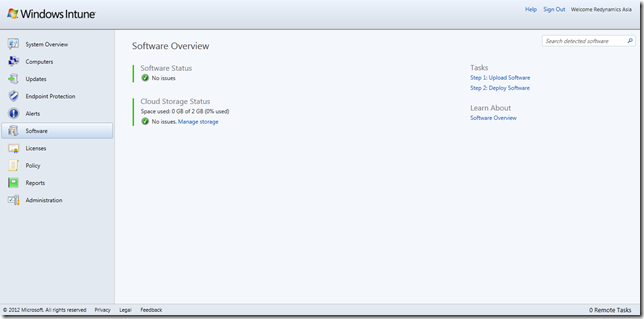
1

Step 2: From the Software administration section, click on the Upload Software link
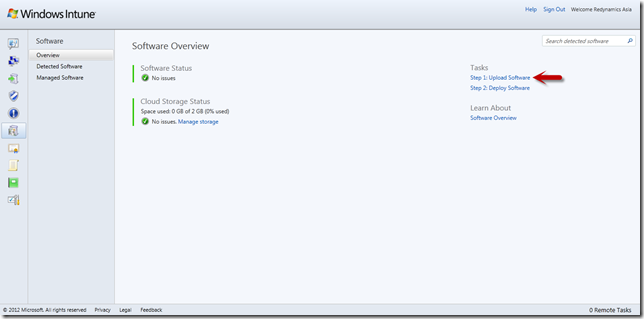
2

Step 3: The Software Publisher mini app should begin downloading if it was not already downloaded before
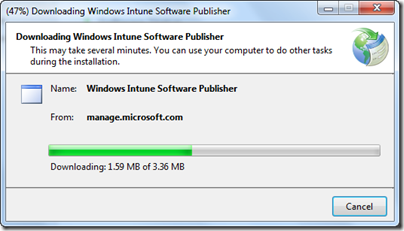
3

Step 4: Sign in with your Intune admin account
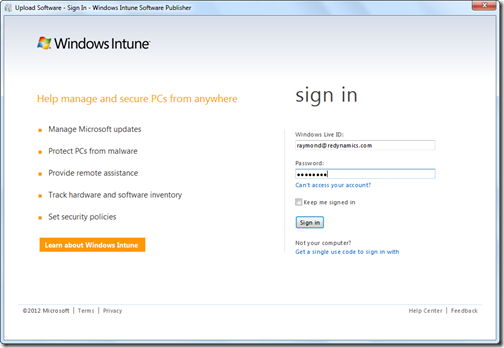
4

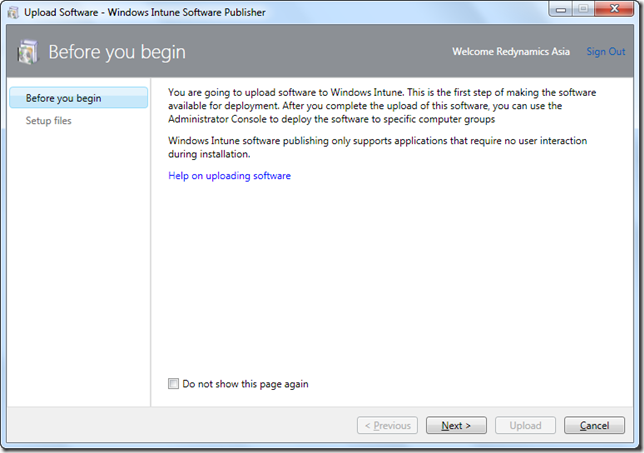
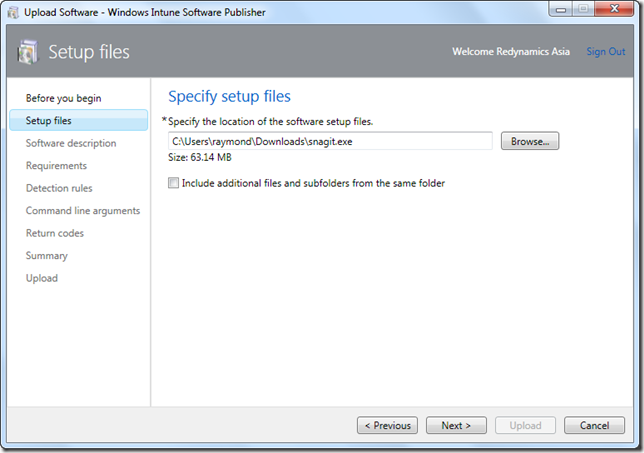
Step 5: The Software Publisher wizard will start, then proceed to choose the application to be uploaded for deployment. At current, as far as I know, exe, msi and bat files are supported. Any file you can execute via command line basically…
5

7

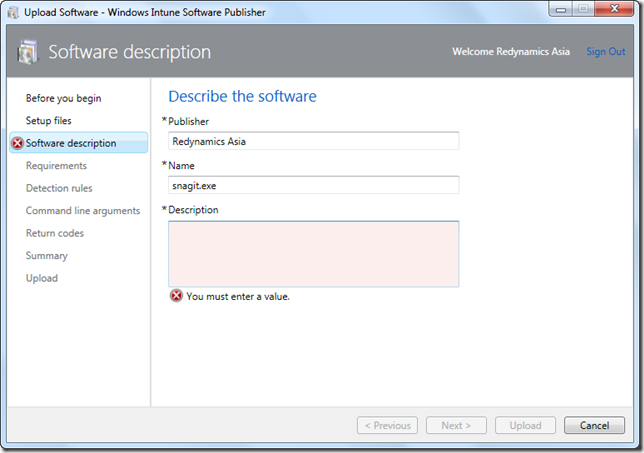
Step 6: Proceed to enter a description
8

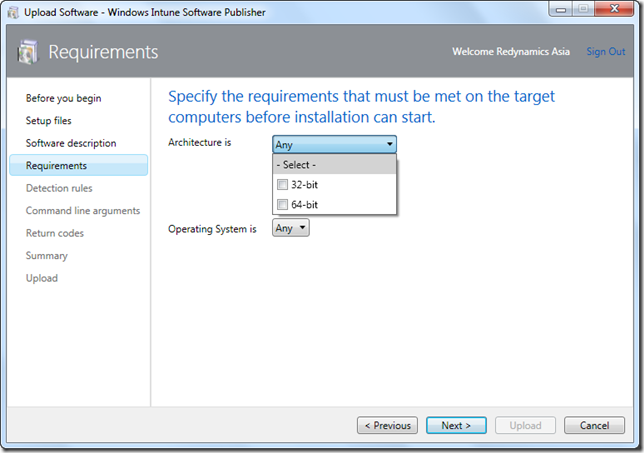
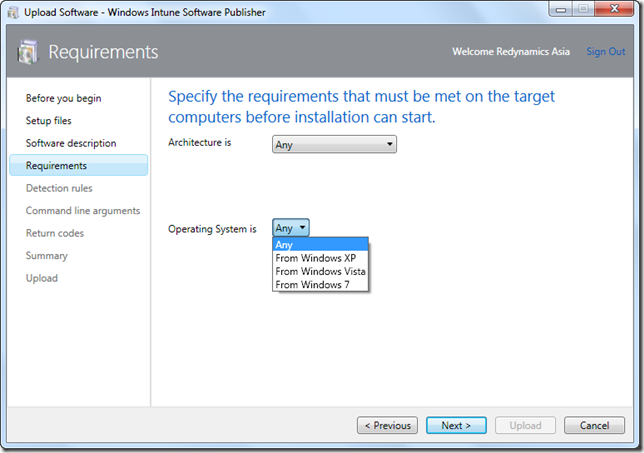
Step 7: Specify if the application needs to meet any architecture requirements of 32/64 bit and OS version
9

10

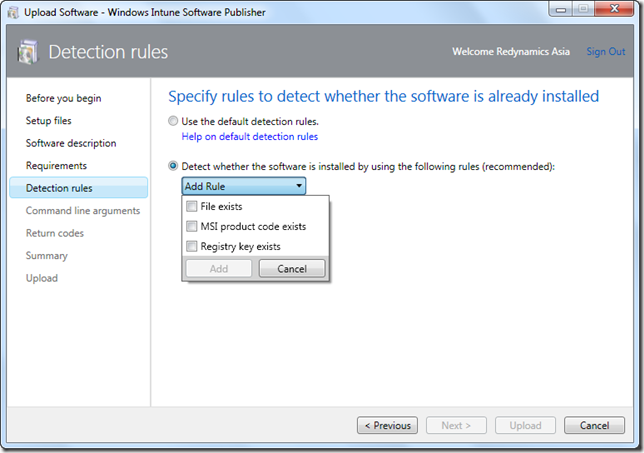
Step 8: Specify any pre-installation Detection Rules, such as if File exists, dont install, etc
11

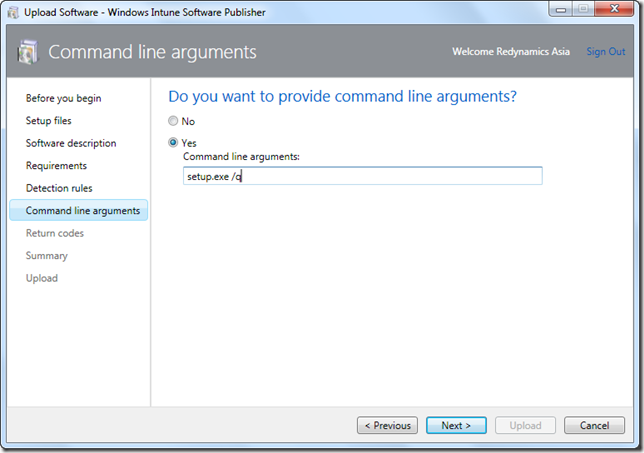
Step 9: IMPORTANT! This step is where you enter the command line arguments of how you would like to execute the software. for MSI, you can use the MSI /? to assist you
12

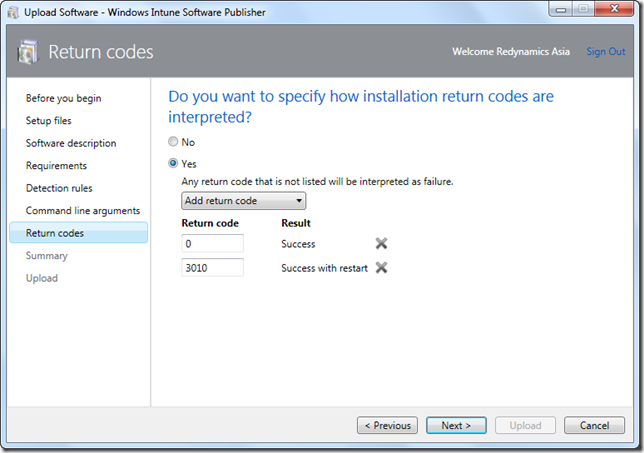
Step 10: In order to receive reports on the success of the installation, specify your preference of return codes
13

Step 11: DO a final review and click Upload
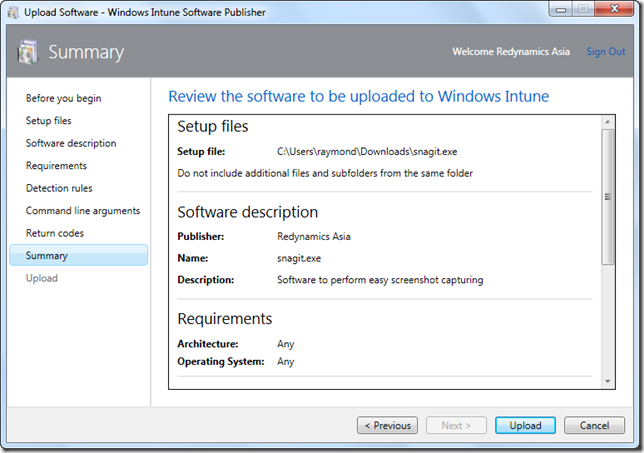
14

Your software will be begin to upload to the Intune Storage. The trial of Intune will give you a storage space of 2GB. Upon purchase, you will be auto upgraded to 20GB of Storage. Additional Storage can be purchased at 1GB blocks.
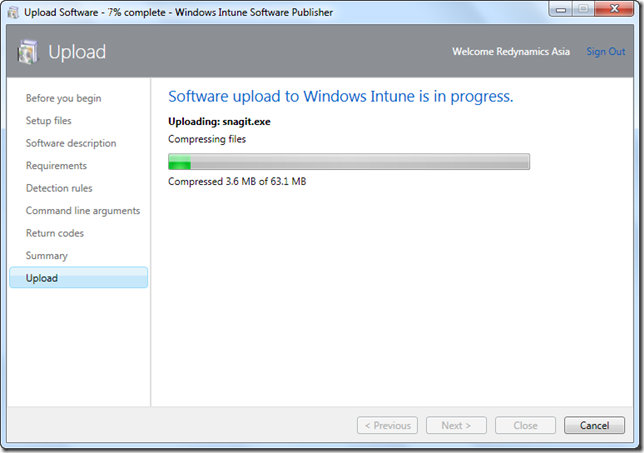
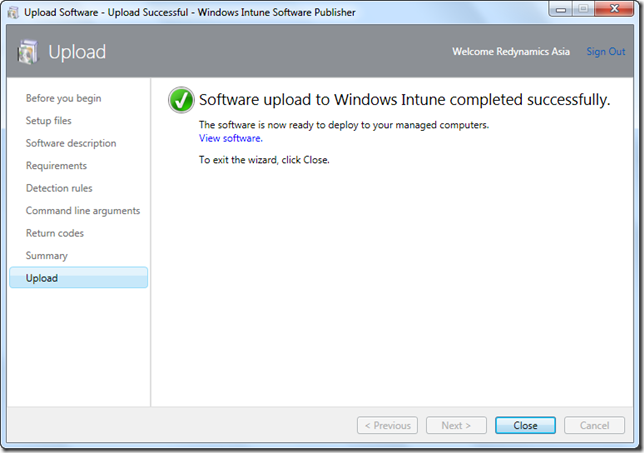
15

16

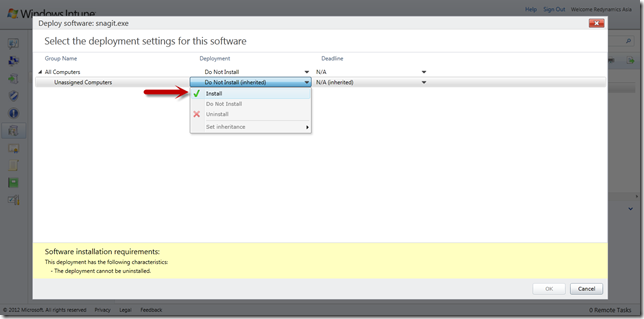
Step 12: To Deploy the software, go to the Managed Software section, and click on Deploy
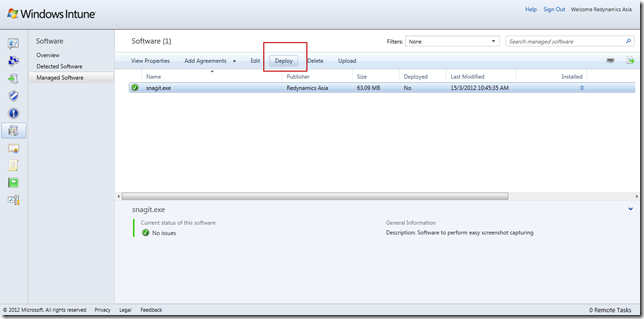
18

Step 13: Select the Install selection from the drop down menu for the specific group of your choice
19

Users should receive the software at the next communication cycle

The following is the user experience of receiving the software:

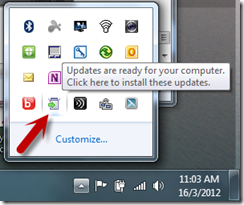
Step 1: User receives a notification via the Taskbar Icon
20

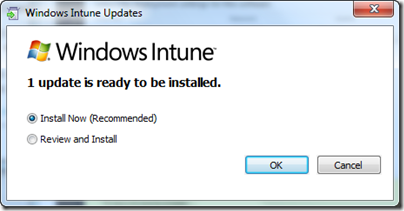
Step 2: When you click on the icon, the Install Software pop up will launch, click on Review and Install if you want to look at the choices of installing the software
21

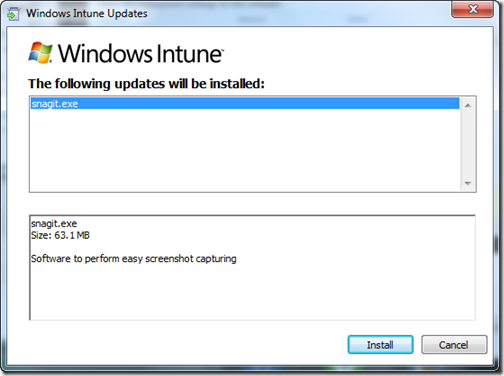
Step 3: Review the software being installed and click on Install when you are ready
22


The important admin experience to note if you are evaluating Windows Intune to perform software distribution is that the users will have to take the initiative to launch the Install

Feel free to comment on this experience

Tuesday, March 13, 2012

New Task Manager in Windows 8 Consumer Preview

Browsing to find out what differences Windows 8 Consumer Preview has, i noticed a cool new Task Manager:

New Picture

Nice pictorial view of machine resources and also some network stats.

The processes tab has also been beefed up with a more detailed breakdown:

New Picture (1)

sweet!